
Station Display
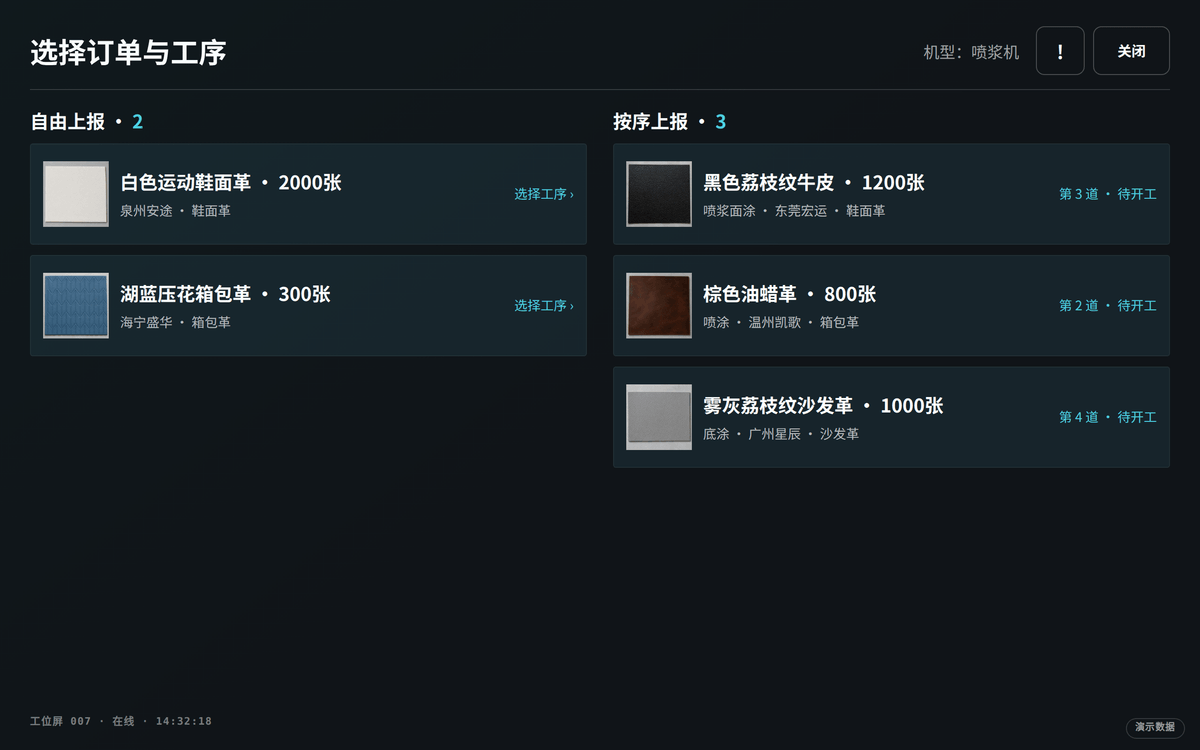
The station display refreshes the current operation queue in real time: current task, progress and the next order in one view.
The station screen itself, signed in as a station rather than as a person.
Three moments in a working day
Shift start: pick and go
The screen lists the orders and operations this station may work; one tap starts the run, in free or sequenced reporting mode as the issued plan dictates.
Reporting: a batch in one motion
When a batch is done the quantity is submitted right on the screen; the record lands on that order's operation and the Production Pad refreshes with it.
Boundary: the station is the identity, no money on screen
The display signs in as a station, never as a person; it shows quantities and operations only — no rates, no amounts, no wages.
Where it stands on the thread
The five software ends share one order thread. The lit stage is where this end acts; neighbouring ends hand the work on, and each stage accepts only what the previous one recorded.
Order intake
Step planning
Floor reporting
Operation acceptance
Piece-rate confirmation
The reporting stage gets a second door here: people on the move use their phones, fixed stations use this screen, and both records land on the same thread.
What this one includes, with status
Every row carries the same status badge used across the site; a row marked planned is not delivered yet and outside the current scope.
Who signs in, what they do, where it stops
- Who signs in
- The station screen itself, signed in as a station rather than as a person.
- What they do
- The station display refreshes the current operation queue in real time: current task, progress and the next order in one view.
- Boundary
- It shows only the quantity this station has to do and has done; no amount, no unit price and no wage ever appears on it.
- Where to check it
- The station page lists the quantity still to do per operation; the finished quantity is submitted at the station, and the screen carries quantities and operations only.
See this end running on your own process?
Tell us your articles and operations when booking; the demo walks your actual flow and shows how the five ends hand work to each other.
Book a demo →